








You have picked a Microsoft 365 plan, entered your Naira card at checkout, and were waiting for the payment confirmation, only to see a transaction declined message. This is a common problem Nigerians face when paying for international subscriptions, especially recurring ones.
Microsoft 365 has become a go-to productivity suite for individuals, families, students, and businesses for work, school, and everyday tasks. So, it can be frustrating when a failed payment gets in the way of accessing it.
The good news is paying with your Naira card is just one of many options. In this guide, we’ll show you how to pay for Microsoft 365 in Nigeria in 4 ways, explain how each method works, and help you choose one that suits your needs.
4 Ways to Pay for Microsoft 365 in Nigeria
| Payment method | Currency | What to watch out for |
| Pouchers virtual dollar card | USD | Card creation fees, insufficient dollar balance, billing address accuracy, and support for recurring payments. |
| Naira debit or credit card | NGN | Bank transaction limits, declined payments, Verve acceptance, and recurring payment restrictions. |
| Local Microsoft cloud partner or reseller | NGN | Reseller pricing, licence terms, renewal costs, and partner authorisation. |
| PayPal | USD | PayPal account eligibility, linked card acceptance, available balance, and currency conversion fees |
1. Pouchers Virtual Dollar Card: A Flexible Way to Pay for Microsoft 365
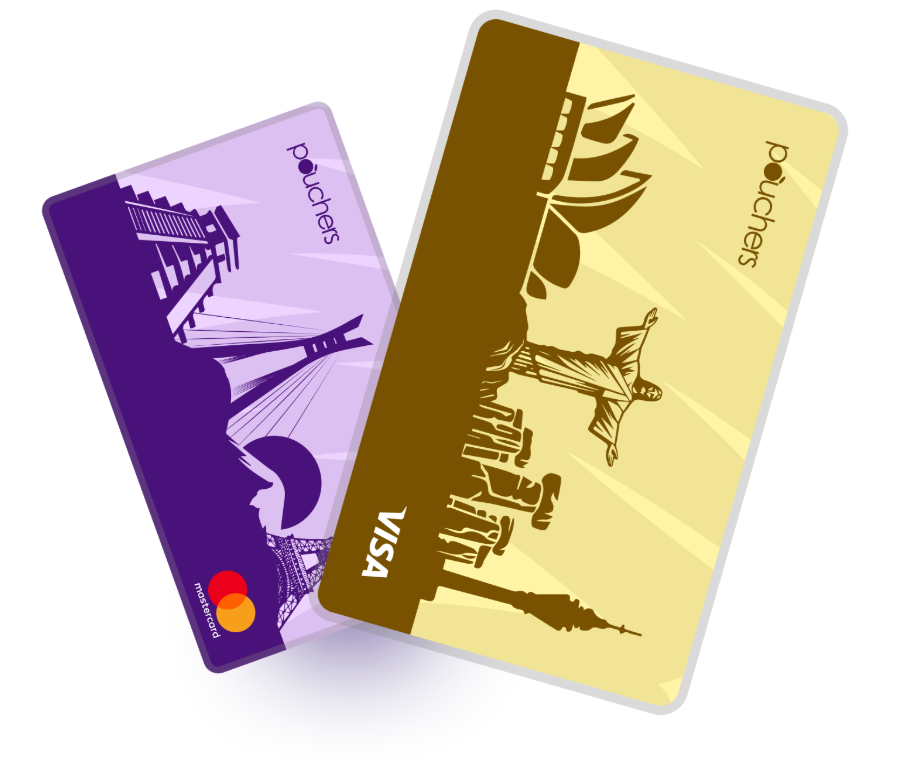
Pouchers virtual dollar card is a flexible way to pay for Microsoft 365, especially when your Nigerian Naira card fails at checkout. It works like a regular debit card, but it enables you to hold and spend in US dollars. You can create one through the Pouchers app, fund it with Naira, and use its card details to pay for your subscription directly on Microsoft’s website.
Pouchers offers two virtual dollar card options: the Standard card for a one-time $2 creation fee and the Premium card for $5. Neither card has a monthly maintenance fee, and you can top up your card from your Pouchers wallet at no charge.
Once you create the card, you will receive the billing address, ZIP code, cardholder name, card number, expiry date, and CVV. Your subscription can renew automatically, or you can cancel it anytime.
Best for: Pouchers virtual dollar card is best for people who want to purchase any available Microsoft 365 plan directly from Microsoft’s US storefront, including Premium and Business plans. Nigerians who already earn in dollars are at an advantage. You can fund the card from your dollar balance rather than converting Naira
2. Naira Debit or Credit Card
Microsoft’s Nigerian Store displays Microsoft 365 subscription prices in Naira, so you can pay directly with a Nigerian bank card that supports the transaction. However, availability depends on your card type, issuing bank, and spending limits.
Some banks, including Access Bank, Fidelity Bank, and Wema Bank, have also restored international payments on eligible Naira cards. To pay, select your preferred Microsoft 365 plan on the Nigerian Microsoft Store, enter your card details at checkout, and provide the correct billing address and postal code.
Best for: People who prefer paying Microsoft’s Naira prices and already have a Naira Visa or Mastercard that works for international online payments.
3. Local Microsoft Cloud Partner or Reseller
Microsoft Cloud partners and resellers such as Whogohost and SATH Cloud in Nigeria are another alternative to paying for Microsoft 365 Business subscriptions. They accept payment in Naira through bank transfers or local invoices.
Instead of paying Microsoft directly with a card, you purchase your subscription through the reseller, who helps arrange the licence and can offer assistance with account setup and ongoing support.
Best for: Businesses that prefer local payment options and assistance with purchasing, setting up, and managing Microsoft 365 subscriptions.
4. PayPal
You can use PayPal to pay for a Microsoft 365 subscription by linking your Pouchers virtual dollar card to your PayPal account. Once linked, select PayPal at checkout to complete your payment.
To get started, create and set up your PayPal account, add your virtual dollar card under Wallet, and make sure it has enough funds to cover the subscription and any applicable conversion fees.
Best for: People who already use PayPal for international online payments.
How to Subscribe to Microsoft 365 with a Pouchers Virtual Dollar Card
Once you have your Pouchers account and virtual dollar card, you can use it to pay for a Microsoft 365 subscription directly on Microsoft’s website. Follow these steps to pay Microsoft with a virtual dollar card
Step 1: Create and verify your Pouchers account
Download the Pouchers app and create an account with your name, email address, and phone number. Verify your email using the code sent to your inbox, then set up your Pouchers Tag and transaction PIN.
Next, complete your identity verification. Go to Settings, open your profile, and select Verify Now. Enter your 11-digit BVN and follow the instructions to complete the selfie verification.
Step 2: Fund your Pouchers wallet
Before creating and funding your card, add money to your Pouchers Naira wallet.
You can fund it through a bank transfer or receive money from another Pouchers user using the Request Funds feature. To make a bank deposit, open the wallet, tap Receive, copy and paste those details to make a transfer.
You must fund the wallet from a bank account linked to your own BVN. Third-party bank transfers are not currently supported.
You can also fund your USD wallet directly with USDT or USDC. The minimum stablecoin deposit is $15, and a 1% deposit fee applies.
Step 3: Create your Pouchers virtual dollar card
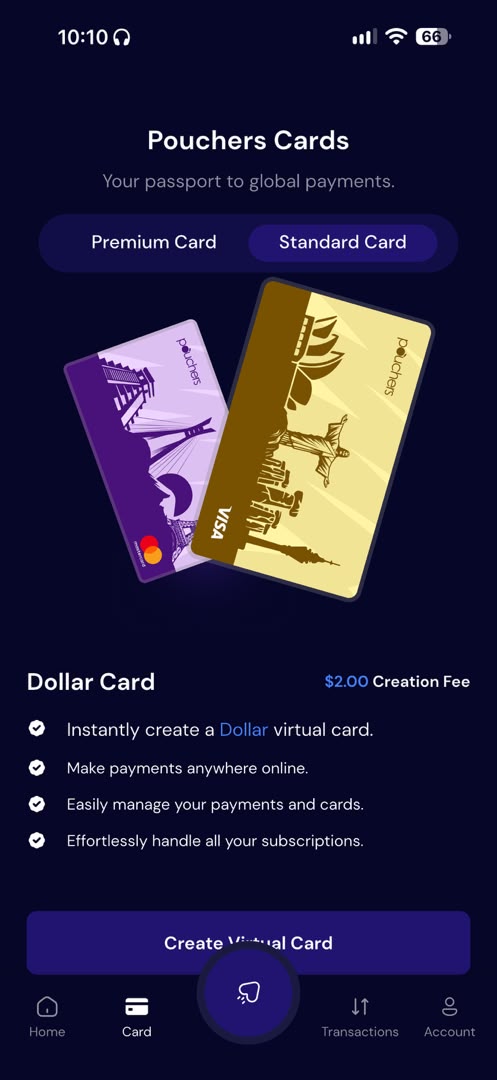
Open the Virtual Card section in the app and choose the card you want to create.
Pouchers offers two options:
- Standard card: $2 one-time creation fee.
- Premium card: $5 one-time creation fee.
The Standard card is sufficient for online Microsoft 365 payments. You only need the Premium card if you want its additional features, including Apple Pay, Google Pay, and compatible in-store payments.
Select your preferred card, choose a card colour, enter your residential address, and confirm the creation fee.
For a Standard card, you need at least $4 to create and activate it. This covers the $2 creation fee and leaves another $2 as usable card balance. You can top up any amount you want at creation or fund it later.
Step 4: Fund your virtual dollar card
Once your card is ready, you need to add enough dollars to cover your Microsoft 365 subscription.
Open Virtual Card, select your card, and tap Fund Card. Enter the amount you want to add in dollars. The app will display the equivalent amount in Naira using the current exchange rate.
Review the exchange rate and confirm the transaction. The money will be deducted from your Naira wallet and credited to your dollar card.
Pouchers does not charge a separate card top-up fee. However, each funding transaction has a maximum of $2,000, and your card can hold up to $20,000. The minimum card balance is $2.
Step 5: Choose your Microsoft 365 plan
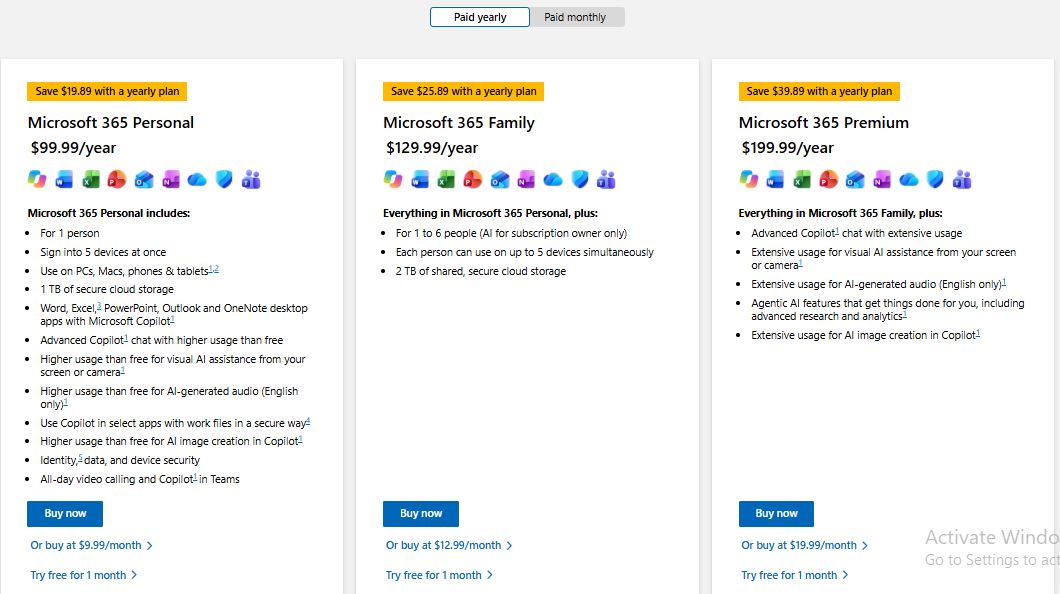
Visit the Microsoft 365 website and tap See Plans and Pricing to browse the available plans and select the subscription that suits your needs. Options include Microsoft 365 Personal at $9.99 per month, Microsoft 365 Premium at $19.99 per month or $199.99 per year.
Tap Buy Now, and you’ll be prompted to sign up or sign in to your Microsoft account.
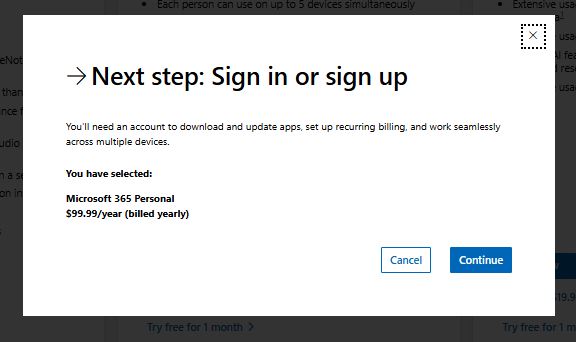
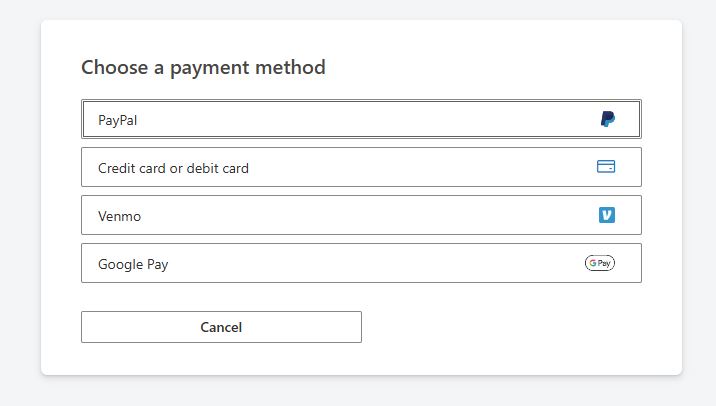
Once you are in, tap Add a new payment method and select the Credit card or debit card option.
Step 6: Enter your Pouchers card details at checkout
At Microsoft’s checkout page, select Credit or debit card as your payment method.
Open your Pouchers app and view your virtual card details. Enter the card number, expiry date, CVV, billing address, and ZIP code as provided by Pouchers in the corresponding fields on Microsoft’s payment page.
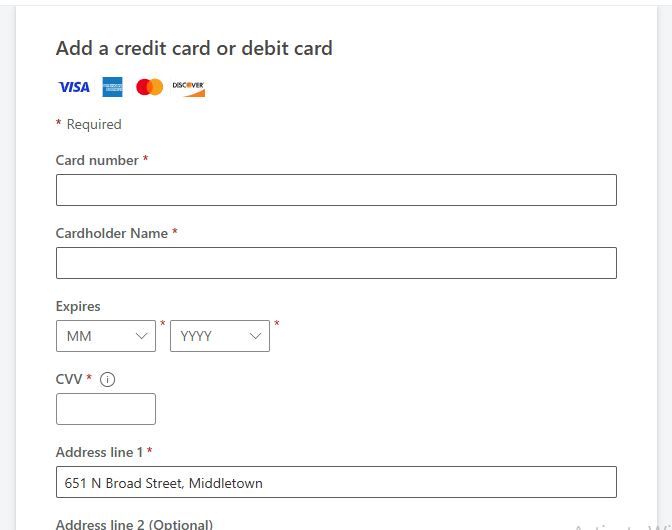
Review your payment details and confirm the purchase. Once Microsoft processes the payment, your subscription should appear under Services and subscriptions. You’ll also receive a confirmation to your registered email address.
Step 7: Confirm your subscription and automatic renewal
After payment, open your Microsoft account and navigate to Services and subscriptions. Find your Microsoft 365 subscription and check its billing status and next renewal date.
Tips for paying Microsoft 365 with a virtual dollar card
A successful first payment does not guarantee that your next Microsoft 365 renewal will go through. Keep these tips in mind to avoid interruptions to your subscription.
- Keep enough money on your card: Check your balance before the renewal date and leave enough to cover the subscription price and any applicable taxes or currency conversion charges.
- Use the correct billing address: Enter the billing address associated with your Pouchers virtual card when Microsoft requests your payment details.
- Avoid insufficient-funds declines: Pouchers charges $0.50 when a payment is declined because your card doesn’t have enough funds, although a failed subscription payment does not terminate your card. You also won’t incur this decline fee if your card is frozen.
What to do if your Microsoft 365 payment is declined
If your virtual dollar or Naira card is declined, don’t keep submitting the same payment without confirming what went wrong. Work through these steps:
- Check your card balance: Confirm that you have enough dollars to cover the subscription and any additional charges.
- Review your card details: Check that the card number, expiry date, and CVV match the details in your Pouchers app. Also ensure the address and postal code you entered match the billing details associated with your card.
- Check your card status: Open Pouchers and confirm that your card is active and not frozen.
- Try the payment again: Once you’ve corrected any errors, return to Microsoft’s checkout and retry the payment. If Microsoft continues to reject the card, try another supported payment method.
- Contact support: If the issue persists, contact Microsoft support to ask why it rejected the payment.
How much does Microsoft 365 cost in Nigeria?
Microsoft 365 prices depend on the plan, billing period, and storefront, with prices displayed in both Naira and US dollars. Here are the prices on Microsoft’s Nigerian store and US storefront:
| Microsoft 365 plan | Monthly price (NGN) | Annual price (NGN) | Monthly price (USD) | Annual price (USD) |
| Basic | ₦1,999 | ₦16,999 | Not listed | Not listed |
| Personal | ₦7,199 | ₦71,999 | $9.99 | $99.99 |
| Family | ₦8,899 | ₦88,999 | $12.99 | $129.99 |
| Premium | ₦16,999 | ₦169,999 | $19.99 | $199.99 |
Note: Prices checked on November 8, 2026. Prices may vary by region and change.
Microsoft 365 Basic includes 100GB of cloud storage and web and mobile apps. Personal adds desktop versions of Word, Excel, and PowerPoint, plus 1TB of OneDrive storage. Family supports up to six people, with 1TB per person, while Premium offers higher usage limits for Copilot and additional AI features.
Microsoft 365 Business pricing
Microsoft 365 Business plans are designed for organisations that need employee accounts, business email, file sharing and administrative controls. Prices are charged per user, so the total depends on how many employee licences you need.
| Business plan | Monthly price (USD) | Annual price per user (USD) |
| Business Standard | $14.00 | $168.00 |
| Business Standard with Copilot | $23.50 | $282.00 |
| Business Premium with Copilot | $32.00 | $384.00 |
Business Basic includes web and mobile Office apps, business email, Teams, and 1TB of cloud storage per user. Business Standard adds desktop Office applications, while Business Premium includes additional security and device-management features.
Final verdict
A declined Microsoft 365 payment can interrupt your work, cut off access to important files, or leave you without the tools you need. That’s why it’s important to choose a payment method that supports recurring billing.
You can pay for Microsoft 365 in Nigeria with a Pouchers virtual dollar card, an eligible Naira debit or credit card, a local Microsoft cloud partner or reseller, or PayPal. Each option serves a different need.
For individuals, businesses, and families who want to pay Microsoft directly and manage their subscriptions, a Pouchers virtual dollar card offers the most convenient option.
Ready to pay for Microsoft 365? Download the Pouchers app to get your virtual dollar card.
Frequently asked questions
1. How do I pay for Microsoft 365 in Nigeria?
You can pay for Microsoft 365 in Nigeria with a Pouchers virtual dollar card. This provides you with card details and a billing address.
2. Can I pay for Microsoft 365 with a Naira card?
Yes. Microsoft Store Nigeria displays subscription prices in Naira, and some Nigerian Visa and Mastercard cards can complete payments. However, some banks have international payment restrictions.
3. Can I pay for Microsoft 365 with a virtual dollar card?
Yes. You can use your Pouchers virtual dollar card to pay for Microsoft 365 directly on Microsoft’s website. Enter your card number, expiry date, CVV, and the correct billing address at checkout.
4. How much is Microsoft 365 in Nigeria?
Microsoft 365 prices depend on the plan, storefront, and billing period. The prices listed in this guide include Microsoft 365 Basic at ₦1,999 per month and Microsoft 365 Premium at ₦16,999 per month or ₦169,999 per year.
5. Is there a way to buy Microsoft 365 permanently?
No. Microsoft 365 is a subscription service that requires recurring payments. If you want a one-time purchase without monthly or annual renewals, consider the standalone version, Office Home 2024. It comes with a one-time licence fee and does not include all the cloud services.
6. Can you pay for Microsoft 365 with a Microsoft gift card?
No. Microsoft says gift card money and account balance can’t be used for a Microsoft 365 subscription. You need the Pouchers virtual USD card, PayPal, or another supported payment method.
Sources